NETWORKING

The term network programming refers to writing programs that execute across multiple devices (computers), in which the devices are all connected to each other using a network.

The java.net package of the J2SE APIs contains a collection of classes and interfaces that provide the low-level communication details, allowing you to write programs that focus on solving the problem at hand.

The java.net package provides support for the two common network protocols −

  • TCP − TCP stands for Transmission Control Protocol, which allows for reliable communication between two applications. TCP is typically used over the Internet Protocol, which is referred to as TCP/IP.
  • UDP − UDP stands for User Datagram Protocol, a connection-less protocol that allows for packets of data to be transmitted between applications.

This chapter gives a good understanding on the following two subjects −

  • Socket Programming − This is the most widely used concept in Networking and it has been explained in very detail.
  • URL Processing − This would be covered separately. Click here to learn about URL Processing in Java language.

Socket Programming

Sockets provide the communication mechanism between two computers using TCP. A client program creates a socket on its end of the communication and attempts to connect that socket to a server.

When the connection is made, the server creates a socket object on its end of the communication. The client and the server can now communicate by writing to and reading from the socket.

The java.net.Socket class represents a socket, and the java.net.ServerSocket class provides a mechanism for the server program to listen for clients and establish connections with them.

The following steps occur when establishing a TCP connection between two computers using sockets −

  • The server instantiates a ServerSocket object, denoting which port number communication is to occur on.
  • The server invokes the accept() method of the ServerSocket class. This method waits until a client connects to the server on the given port.
  • After the server is waiting, a client instantiates a Socket object, specifying the server name and the port number to connect to.
  • The constructor of the Socket class attempts to connect the client to the specified server and the port number. If communication is established, the client now has a Socket object capable of communicating with the server.
  • On the server side, the accept() method returns a reference to a new socket on the server that is connected to the client’s socket.

After the connections are established, communication can occur using I/O streams. Each socket has both an OutputStream and an InputStream. The client’s OutputStream is connected to the server’s InputStream, and the client’s InputStream is connected to the server’s OutputStream.

TCP is a two-way communication protocol, hence data can be sent across both streams at the same time. Following are the useful classes providing complete set of methods to implement sockets.

ServerSocket Class Methods

The java.net.ServerSocket class is used by server applications to obtain a port and listen for client requests.

The ServerSocket class has four constructors −

Sr.No. Method & Description
1 public ServerSocket(int port) throws IOException

Attempts to create a server socket bound to the specified port. An exception occurs if the port is already bound by another application.

2 public ServerSocket(int port, int backlog) throws IOException

Similar to the previous constructor, the backlog parameter specifies how many incoming clients to store in a wait queue.

3 public ServerSocket(int port, int backlog, InetAddress address) throws IOException

Similar to the previous constructor, the InetAddress parameter specifies the local IP address to bind to. The InetAddress is used for servers that may have multiple IP addresses, allowing the server to specify which of its IP addresses to accept client requests on.

4 public ServerSocket() throws IOException

Creates an unbound server socket. When using this constructor, use the bind() method when you are ready to bind the server socket.

If the ServerSocket constructor does not throw an exception, it means that your application has successfully bound to the specified port and is ready for client requests.

Following are some of the common methods of the ServerSocket class −

Sr.No. Method & Description
1 public int getLocalPort()

Returns the port that the server socket is listening on. This method is useful if you passed in 0 as the port number in a constructor and let the server find a port for you.

2 public Socket accept() throws IOException

Waits for an incoming client. This method blocks until either a client connects to the server on the specified port or the socket times out, assuming that the time-out value has been set using the setSoTimeout() method. Otherwise, this method blocks indefinitely.

3 public void setSoTimeout(int timeout)

Sets the time-out value for how long the server socket waits for a client during the accept().

4 public void bind(SocketAddress host, int backlog)

Binds the socket to the specified server and port in the SocketAddress object. Use this method if you have instantiated the ServerSocket using the no-argument constructor.

When the ServerSocket invokes accept(), the method does not return until a client connects. After a client does connect, the ServerSocket creates a new Socket on an unspecified port and returns a reference to this new Socket. A TCP connection now exists between the client and the server, and communication can begin.

Socket Class Methods

The java.net.Socket class represents the socket that both the client and the server use to communicate with each other. The client obtains a Socket object by instantiating one, whereas the server obtains a Socket object from the return value of the accept() method.

The Socket class has five constructors that a client uses to connect to a server −

Sr.No. Method & Description
1 public Socket(String host, int port) throws UnknownHostException, IOException.

This method attempts to connect to the specified server at the specified port. If this constructor does not throw an exception, the connection is successful and the client is connected to the server.

2 public Socket(InetAddress host, int port) throws IOException

This method is identical to the previous constructor, except that the host is denoted by an InetAddress object.

3 public Socket(String host, int port, InetAddress localAddress, int localPort) throws IOException.

Connects to the specified host and port, creating a socket on the local host at the specified address and port.

4 public Socket(InetAddress host, int port, InetAddress localAddress, int localPort) throws IOException.

This method is identical to the previous constructor, except that the host is denoted by an InetAddress object instead of a String.

5 public Socket()

Creates an unconnected socket. Use the connect() method to connect this socket to a server.

When the Socket constructor returns, it does not simply instantiate a Socket object but it actually attempts to connect to the specified server and port.

Some methods of interest in the Socket class are listed here. Notice that both the client and the server have a Socket object, so these methods can be invoked by both the client and the server.

Sr.No. Method & Description
1 public void connect(SocketAddress host, int timeout) throws IOException

This method connects the socket to the specified host. This method is needed only when you instantiate the Socket using the no-argument constructor.

2 public InetAddress getInetAddress()

This method returns the address of the other computer that this socket is connected to.

3 public int getPort()

Returns the port the socket is bound to on the remote machine.

4 public int getLocalPort()

Returns the port the socket is bound to on the local machine.

5 public SocketAddress getRemoteSocketAddress()

Returns the address of the remote socket.

6 public InputStream getInputStream() throws IOException

Returns the input stream of the socket. The input stream is connected to the output stream of the remote socket.

7 public OutputStream getOutputStream() throws IOException

Returns the output stream of the socket. The output stream is connected to the input stream of the remote socket.

8 public void close() throws IOException

Closes the socket, which makes this Socket object no longer capable of connecting again to any server.

InetAddress Class Methods

This class represents an Internet Protocol (IP) address. Here are following usefull methods which you would need while doing socket programming −

Sr.No. Method & Description
1 static InetAddress getByAddress(byte[] addr)

Returns an InetAddress object given the raw IP address.

2 static InetAddress getByAddress(String host, byte[] addr)

Creates an InetAddress based on the provided host name and IP address.

3 static InetAddress getByName(String host)

Determines the IP address of a host, given the host’s name.

4 String getHostAddress()

Returns the IP address string in textual presentation.

5 String getHostName()

Gets the host name for this IP address.

6 static InetAddress InetAddress getLocalHost()

Returns the local host.

7 String toString()

Converts this IP address to a String.

Socket Client Example

The following GreetingClient is a client program that connects to a server by using a socket and sends a greeting, and then waits for a response.

Example

// File Name GreetingClient.java
import java.net.*;
import java.io.*;

public class GreetingClient {

   public static void main(String [] args) {
      String serverName = args[0];
      int port = Integer.parseInt(args[1]);
      try {
         System.out.println("Connecting to " + serverName + " on port " + port);
         Socket client = new Socket(serverName, port);
         
         System.out.println("Just connected to " + client.getRemoteSocketAddress());
         OutputStream outToServer = client.getOutputStream();
         DataOutputStream out = new DataOutputStream(outToServer);
         
         out.writeUTF("Hello from " + client.getLocalSocketAddress());
         InputStream inFromServer = client.getInputStream();
         DataInputStream in = new DataInputStream(inFromServer);
         
         System.out.println("Server says " + in.readUTF());
         client.close();
      }catch(IOException e) {
         e.printStackTrace();
      }
   }
}

Socket Server Example

The following GreetingServer program is an example of a server application that uses the Socket class to listen for clients on a port number specified by a command-line argument −

Example

// File Name GreetingServer.java
import java.net.*;
import java.io.*;

public class GreetingServer extends Thread {
   private ServerSocket serverSocket;
   
   public GreetingServer(int port) throws IOException {
      serverSocket = new ServerSocket(port);
      serverSocket.setSoTimeout(10000);
   }

   public void run() {
      while(true) {
         try {
            System.out.println("Waiting for client on port " + 
               serverSocket.getLocalPort() + "...");
            Socket server = serverSocket.accept();
            
            System.out.println("Just connected to " + server.getRemoteSocketAddress());
            DataInputStream in = new DataInputStream(server.getInputStream());
            
            System.out.println(in.readUTF());
            DataOutputStream out = new DataOutputStream(server.getOutputStream());
            out.writeUTF("Thank you for connecting to " + server.getLocalSocketAddress()
               + "\nGoodbye!");
            server.close();
            
         }catch(SocketTimeoutException s) {
            System.out.println("Socket timed out!");
            break;
         }catch(IOException e) {
            e.printStackTrace();
            break;
         }
      }
   }
   
   public static void main(String [] args) {
      int port = Integer.parseInt(args[0]);
      try {
         Thread t = new GreetingServer(port);
         t.start();
      }catch(IOException e) {
         e.printStackTrace();
      }
   }
}

Compile the client and the server and then start the server as follows −

$ java GreetingServer 6066
Waiting for client on port 6066...

Check the client program as follows −

Output

$ java GreetingClient localhost 6066
Connecting to localhost on port 6066
Just connected to localhost/127.0.0.1:6066
Server says Thank you for connecting to /127.0.0.1:6066
Goodbye!

Applet Basics

An applet is a Java program that runs in a Web browser. An applet can be a fully functional Java application because it has the entire Java API at its disposal.

There are some important differences between an applet and a standalone Java application, including the following −

  • An applet is a Java class that extends the java.applet.Applet class.
  • A main() method is not invoked on an applet, and an applet class will not define main().
  • Applets are designed to be embedded within an HTML page.
  • When a user views an HTML page that contains an applet, the code for the applet is downloaded to the user’s machine.
  • A JVM is required to view an applet. The JVM can be either a plug-in of the Web browser or a separate runtime environment.
  • The JVM on the user’s machine creates an instance of the applet class and invokes various methods during the applet’s lifetime.
  • Applets have strict security rules that are enforced by the Web browser. The security of an applet is often referred to as sandbox security, comparing the applet to a child playing in a sandbox with various rules that must be followed.
  • Other classes that the applet needs can be downloaded in a single Java Archive (JAR) file.

Life Cycle of an Applet

Four methods in the Applet class gives you the framework on which you build any serious applet −

  • init − This method is intended for whatever initialization is needed for your applet. It is called after the param tags inside the applet tag have been processed.
  • start − This method is automatically called after the browser calls the init method. It is also called whenever the user returns to the page containing the applet after having gone off to other pages.
  • stop − This method is automatically called when the user moves off the page on which the applet sits. It can, therefore, be called repeatedly in the same applet.
  • destroy − This method is only called when the browser shuts down normally. Because applets are meant to live on an HTML page, you should not normally leave resources behind after a user leaves the page that contains the applet.
  • paint − Invoked immediately after the start() method, and also any time the applet needs to repaint itself in the browser. The paint() method is actually inherited from the java.awt.

A “Hello, World” Applet

Following is a simple applet named HelloWorldApplet.java −

import java.applet.*;
import java.awt.*;

public class HelloWorldApplet extends Applet {
   public void paint (Graphics g) {
      g.drawString ("Hello World", 25, 50);
   }
}

These import statements bring the classes into the scope of our applet class −

  • java.applet.Applet
  • java.awt.Graphics

Without those import statements, the Java compiler would not recognize the classes Applet and Graphics, which the applet class refers to.

The Applet Class

Every applet is an extension of the java.applet.Applet class. The base Applet class provides methods that a derived Applet class may call to obtain information and services from the browser context.

These include methods that do the following −

  • Get applet parameters
  • Get the network location of the HTML file that contains the applet
  • Get the network location of the applet class directory
  • Print a status message in the browser
  • Fetch an image
  • Fetch an audio clip
  • Play an audio clip
  • Resize the applet

Additionally, the Applet class provides an interface by which the viewer or browser obtains information about the applet and controls the applet’s execution. The viewer may −

  • Request information about the author, version, and copyright of the applet
  • Request a description of the parameters the applet recognizes
  • Initialize the applet
  • Destroy the applet
  • Start the applet’s execution
  • Stop the applet’s execution

The Applet class provides default implementations of each of these methods. Those implementations may be overridden as necessary.

The “Hello, World” applet is complete as it stands. The only method overridden is the paint method.

Invoking an Applet

An applet may be invoked by embedding directives in an HTML file and viewing the file through an applet viewer or Java-enabled browser.

The <applet> tag is the basis for embedding an applet in an HTML file. Following is an example that invokes the “Hello, World” applet −

<html>
   <title>The Hello, World Applet</title>
   <hr>
   <applet code = "HelloWorldApplet.class" width = "320" height = "120">
      If your browser was Java-enabled, a "Hello, World"
      message would appear here.
   </applet>
   <hr>
</html>

Note − You can refer to HTML Applet Tag to understand more about calling applet from HTML.

The code attribute of the <applet> tag is required. It specifies the Applet class to run. Width and height are also required to specify the initial size of the panel in which an applet runs. The applet directive must be closed with an </applet> tag.

If an applet takes parameters, values may be passed for the parameters by adding <param> tags between <applet> and </applet>. The browser ignores text and other tags between the applet tags.

Non-Java-enabled browsers do not process <applet> and </applet>. Therefore, anything that appears between the tags, not related to the applet, is visible in non-Java-enabled browsers.

The viewer or browser looks for the compiled Java code at the location of the document. To specify otherwise, use the codebase attribute of the <applet> tag as shown −

<applet codebase = "https://amrood.com/applets" code = "HelloWorldApplet.class"
   width = "320" height = "120">

If an applet resides in a package other than the default, the holding package must be specified in the code attribute using the period character (.) to separate package/class components. For example −

<applet  = "mypackage.subpackage.TestApplet.class" 
   width = "320" height = "120">

Getting Applet Parameters

The following example demonstrates how to make an applet respond to setup parameters specified in the document. This applet displays a checkerboard pattern of black and a second color.

The second color and the size of each square may be specified as parameters to the applet within the document.

CheckerApplet gets its parameters in the init() method. It may also get its parameters in the paint() method. However, getting the values and saving the settings once at the start of the applet, instead of at every refresh, is convenient and efficient.

The applet viewer or browser calls the init() method of each applet it runs. The viewer calls init() once, immediately after loading the applet. (Applet.init() is implemented to do nothing.) Override the default implementation to insert custom initialization code.

The Applet.getParameter() method fetches a parameter given the parameter’s name (the value of a parameter is always a string). If the value is numeric or other non-character data, the string must be parsed.

The following is a skeleton of CheckerApplet.java −

import java.applet.*;
import java.awt.*;

public class CheckerApplet extends Applet {
   int squareSize = 50;   // initialized to default size
   public void init() {}
   private void parseSquareSize (String param) {}
   private Color parseColor (String param) {}
   public void paint (Graphics g) {}
}

Here are CheckerApplet’s init() and private parseSquareSize() methods −

public void init () {
   String squareSizeParam = getParameter ("squareSize");
   parseSquareSize (squareSizeParam);
   
   String colorParam = getParameter ("color");
   Color fg = parseColor (colorParam);
   
   setBackground (Color.black);
   setForeground (fg);
}

private void parseSquareSize (String param) {
   if (param == null) return;
   try {
      squareSize = Integer.parseInt (param);
   }catch (Exception e) {
      // Let default value remain
   }
}

The applet calls parseSquareSize() to parse the squareSize parameter. parseSquareSize() calls the library method Integer.parseInt(), which parses a string and returns an integer. Integer.parseInt() throws an exception whenever its argument is invalid.

Therefore, parseSquareSize() catches exceptions, rather than allowing the applet to fail on bad input.

The applet calls parseColor() to parse the color parameter into a Color value. parseColor() does a series of string comparisons to match the parameter value to the name of a predefined color. You need to implement these methods to make this applet work.

Specifying Applet Parameters

The following is an example of an HTML file with a CheckerApplet embedded in it. The HTML file specifies both parameters to the applet by means of the <param> tag.

<html>
   <title>Checkerboard Applet</title>
   <hr>
   <applet code = "CheckerApplet.class" width = "480" height = "320">
      <param name = "color" value = "blue">
      <param name = "squaresize" value = "30">
   </applet>
   <hr>
</html>

Note − Parameter names are not case sensitive.

Application Conversion to Applets

It is easy to convert a graphical Java application (that is, an application that uses the AWT and that you can start with the Java program launcher) into an applet that you can embed in a web page.

Following are the specific steps for converting an application to an applet.

  • Make an HTML page with the appropriate tag to load the applet code.
  • Supply a subclass of the JApplet class. Make this class public. Otherwise, the applet cannot be loaded.
  • Eliminate the main method in the application. Do not construct a frame window for the application. Your application will be displayed inside the browser.
  • Move any initialization code from the frame window constructor to the init method of the applet. You don’t need to explicitly construct the applet object. The browser instantiates it for you and calls the init method.
  • Remove the call to setSize; for applets, sizing is done with the width and height parameters in the HTML file.
  • Remove the call to setDefaultCloseOperation. An applet cannot be closed; it terminates when the browser exits.
  • If the application calls setTitle, eliminate the call to the method. Applets cannot have title bars. (You can, of course, title the web page itself, using the HTML title tag.)
  • Don’t call setVisible(true). The applet is displayed automatically.

Event Handling

Applets inherit a group of event-handling methods from the Container class. The Container class defines several methods, such as processKeyEvent and processMouseEvent, for handling particular types of events, and then one catch-all method called processEvent.

In order to react to an event, an applet must override the appropriate event-specific method.

import java.awt.event.MouseListener;
import java.awt.event.MouseEvent;
import java.applet.Applet;
import java.awt.Graphics;

public class ExampleEventHandling extends Applet implements MouseListener {
   StringBuffer strBuffer;

   public void init() {
      addMouseListener(this);
      strBuffer = new StringBuffer();
      addItem("initializing the apple ");
   }

   public void start() {
      addItem("starting the applet ");
   }

   public void stop() {
      addItem("stopping the applet ");
   }

   public void destroy() {
      addItem("unloading the applet");
   }

   void addItem(String word) {
      System.out.println(word);
      strBuffer.append(word);
      repaint();
   }

   public void paint(Graphics g) {
      // Draw a Rectangle around the applet's display area.
      g.drawRect(0, 0, 
      getWidth() - 1,
      getHeight() - 1);

      // display the string inside the rectangle.
      g.drawString(strBuffer.toString(), 10, 20);
   }

   
   public void mouseEntered(MouseEvent event) {
   }
   public void mouseExited(MouseEvent event) {
   }
   public void mousePressed(MouseEvent event) {
   }
   public void mouseReleased(MouseEvent event) {
   }
   public void mouseClicked(MouseEvent event) {
      addItem("mouse clicked! ");
   }
}

Now, let us call this applet as follows −

<html>
   <title>Event Handling</title>
   <hr>
   <applet code = "ExampleEventHandling.class" 
      width = "300" height = "300">
   </applet>
   <hr>
</html>

Initially, the applet will display “initializing the applet. Starting the applet.” Then once you click inside the rectangle, “mouse clicked” will be displayed as well.

Displaying Images

An applet can display images of the format GIF, JPEG, BMP, and others. To display an image within the applet, you use the drawImage() method found in the java.awt.Graphics class.

Following is an example illustrating all the steps to show images −

import java.applet.*;
import java.awt.*;
import java.net.*;

public class ImageDemo extends Applet {
   private Image image;
   private AppletContext context;
   
   public void init() {
      context = this.getAppletContext();
      String imageURL = this.getParameter("image");
      if(imageURL == null) {
         imageURL = "java.jpg";
      }
      try {
         URL url = new URL(this.getDocumentBase(), imageURL);
         image = context.getImage(url);
      }catch(MalformedURLException e) {
         e.printStackTrace();
         // Display in browser status bar
         context.showStatus("Could not load image!");
      }
   }
   
   public void paint(Graphics g) {
      context.showStatus("Displaying image");
      g.drawImage(image, 0, 0, 200, 84, null);
      g.drawString("www.javalicense.com", 35, 100);
   }  
}

Now, let us call this applet as follows −

<html>
   <title>The ImageDemo applet</title>
   <hr>
   <applet code = "ImageDemo.class" width = "300" height = "200">
      <param name = "image" value = "java.jpg">
   </applet>
   <hr>
</html>

Playing Audio

An applet can play an audio file represented by the AudioClip interface in the java.applet package. The AudioClip interface has three methods, including −

  • public void play() − Plays the audio clip one time, from the beginning.
  • public void loop() − Causes the audio clip to replay continually.
  • public void stop() − Stops playing the audio clip.

To obtain an AudioClip object, you must invoke the getAudioClip() method of the Applet class. The getAudioClip() method returns immediately, whether or not the URL resolves to an actual audio file. The audio file is not downloaded until an attempt is made to play the audio clip.

Following is an example illustrating all the steps to play an audio −

import java.applet.*;
import java.awt.*;
import java.net.*;

public class AudioDemo extends Applet {
   private AudioClip clip;
   private AppletContext context;
   
   public void init() {
      context = this.getAppletContext();
      String audioURL = this.getParameter("audio");
      if(audioURL == null) {
         audioURL = "default.au";
      }
      try {
         URL url = new URL(this.getDocumentBase(), audioURL);
         clip = context.getAudioClip(url);
      }catch(MalformedURLException e) {
         e.printStackTrace();
         context.showStatus("Could not load audio file!");
      }
   }
   
   public void start() {
      if(clip != null) {
         clip.loop();
      }
   }
   
   public void stop() {
      if(clip != null) {
         clip.stop();
      }
   }
}

Now, let us call this applet as follows −

<html>
   <title>The ImageDemo applet</title>
   <hr>
   <applet code = "ImageDemo.class" width = "0" height = "0">
      <param name = "audio" value = "test.wav">
   </applet>
   <hr>
</html>

MULTITHREADING

Java is a multi-threaded programming language which means we can develop multi-threaded program using Java. A multi-threaded program contains two or more parts that can run concurrently and each part can handle a different task at the same time making optimal use of the available resources specially when your computer has multiple CPUs.

By definition, multitasking is when multiple processes share common processing resources such as a CPU. Multi-threading extends the idea of multitasking into applications where you can subdivide specific operations within a single application into individual threads. Each of the threads can run in parallel. The OS divides processing time not only among different applications, but also among each thread within an application.

Multi-threading enables you to write in a way where multiple activities can proceed concurrently in the same program.

Life Cycle of a Thread

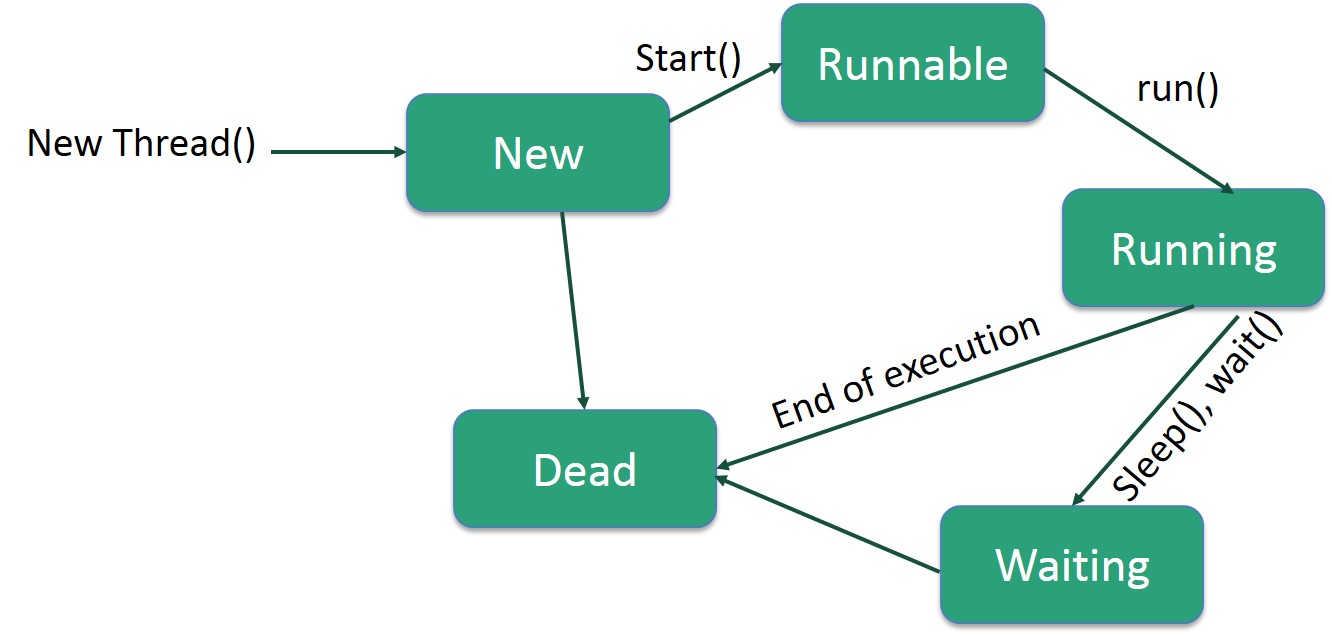
A thread goes through various stages in its life cycle. For example, a thread is born, started, runs, and then dies. The following diagram shows the complete life cycle of a thread.

Java Thread

Following are the stages of the life cycle −

  • New − A new thread begins its life cycle in the new state. It remains in this state until the program starts the thread. It is also referred to as aborn thread.
  • Runnable − After a newly born thread is started, the thread becomes runnable. A thread in this state is considered to be executing its task.
  • Waiting − Sometimes, a thread transitions to the waiting state while the thread waits for another thread to perform a task. A thread transitions back to the runnable state only when another thread signals the waiting thread to continue executing.
  • Timed Waiting − A runnable thread can enter the timed waiting state for a specified interval of time. A thread in this state transitions back to the runnable state when that time interval expires or when the event it is waiting for occurs.
  • Terminated (Dead) − A runnable thread enters the terminated state when it completes its task or otherwise terminates.

Thread Priorities

Every Java thread has a priority that helps the operating system determine the order in which threads are scheduled.

Java thread priorities are in the range between MIN_PRIORITY (a constant of 1) and MAX_PRIORITY (a constant of 10). By default, every thread is given priority NORM_PRIORITY (a constant of 5).

Threads with higher priority are more important to a program and should be allocated processor time before lower-priority threads. However, thread priorities cannot guarantee the order in which threads execute and are very much platform dependent.

Create a Thread by Implementing a Runnable Interface

If your class is intended to be executed as a thread then you can achieve this by implementing a Runnable interface. You will need to follow three basic steps −

Step 1

As a first step, you need to implement a run() method provided by a Runnableinterface. This method provides an entry point for the thread and you will put your complete business logic inside this method. Following is a simple syntax of the run() method −

public void run( )

Step 2

As a second step, you will instantiate a Thread object using the following constructor −

Thread(Runnable threadObj, String threadName);

Where, threadObj is an instance of a class that implements the Runnableinterface and threadName is the name given to the new thread.

Step 3

Once a Thread object is created, you can start it by calling start() method, which executes a call to run( ) method. Following is a simple syntax of start() method −

void start();

Example

Here is an example that creates a new thread and starts running it −

class RunnableDemo implements Runnable {
   private Thread t;
   private String threadName;
   
   RunnableDemo( String name) {
      threadName = name;
      System.out.println("Creating " +  threadName );
   }
   
   public void run() {
      System.out.println("Running " +  threadName );
      try {
         for(int i = 4; i > 0; i--) {
            System.out.println("Thread: " + threadName + ", " + i);
            // Let the thread sleep for a while.
            Thread.sleep(50);
         }
      }catch (InterruptedException e) {
         System.out.println("Thread " +  threadName + " interrupted.");
      }
      System.out.println("Thread " +  threadName + " exiting.");
   }
   
   public void start () {
      System.out.println("Starting " +  threadName );
      if (t == null) {
         t = new Thread (this, threadName);
         t.start ();
      }
   }
}

public class TestThread {

   public static void main(String args[]) {
      RunnableDemo R1 = new RunnableDemo( "Thread-1");
      R1.start();
      
      RunnableDemo R2 = new RunnableDemo( "Thread-2");
      R2.start();
   }   
}

This will produce the following result −

Output

Creating Thread-1
Starting Thread-1
Creating Thread-2
Starting Thread-2
Running Thread-1
Thread: Thread-1, 4
Running Thread-2
Thread: Thread-2, 4
Thread: Thread-1, 3
Thread: Thread-2, 3
Thread: Thread-1, 2
Thread: Thread-2, 2
Thread: Thread-1, 1
Thread: Thread-2, 1
Thread Thread-1 exiting.
Thread Thread-2 exiting.

Create a Thread by Extending a Thread Class

The second way to create a thread is to create a new class that extendsThread class using the following two simple steps. This approach provides more flexibility in handling multiple threads created using available methods in Thread class.

Step 1

You will need to override run( ) method available in Thread class. This method provides an entry point for the thread and you will put your complete business logic inside this method. Following is a simple syntax of run() method −

public void run( )

Step 2

Once Thread object is created, you can start it by calling start() method, which executes a call to run( ) method. Following is a simple syntax of start() method −

void start( );

Example

Here is the preceding program rewritten to extend the Thread −

class ThreadDemo extends Thread {
   private Thread t;
   private String threadName;
   
   ThreadDemo( String name) {
      threadName = name;
      System.out.println("Creating " +  threadName );
   }
   
   public void run() {
      System.out.println("Running " +  threadName );
      try {
         for(int i = 4; i > 0; i--) {
            System.out.println("Thread: " + threadName + ", " + i);
            // Let the thread sleep for a while.
            Thread.sleep(50);
         }
      }catch (InterruptedException e) {
         System.out.println("Thread " +  threadName + " interrupted.");
      }
      System.out.println("Thread " +  threadName + " exiting.");
   }
   
   public void start () {
      System.out.println("Starting " +  threadName );
      if (t == null) {
         t = new Thread (this, threadName);
         t.start ();
      }
   }
}

public class TestThread {

   public static void main(String args[]) {
      ThreadDemo T1 = new ThreadDemo( "Thread-1");
      T1.start();
      
      ThreadDemo T2 = new ThreadDemo( "Thread-2");
      T2.start();
   }   
}

This will produce the following result −

Output

Creating Thread-1
Starting Thread-1
Creating Thread-2
Starting Thread-2
Running Thread-1
Thread: Thread-1, 4
Running Thread-2
Thread: Thread-2, 4
Thread: Thread-1, 3
Thread: Thread-2, 3
Thread: Thread-1, 2
Thread: Thread-2, 2
Thread: Thread-1, 1
Thread: Thread-2, 1
Thread Thread-1 exiting.
Thread Thread-2 exiting.

Thread Methods

Following is the list of important methods available in the Thread class.

Sr.No. Method & Description
1 public void start()

Starts the thread in a separate path of execution, then invokes the run() method on this Thread object.

2 public void run()

If this Thread object was instantiated using a separate Runnable target, the run() method is invoked on that Runnable object.

3 public final void setName(String name)

Changes the name of the Thread object. There is also a getName() method for retrieving the name.

4 public final void setPriority(int priority)

Sets the priority of this Thread object. The possible values are between 1 and 10.

5 public final void setDaemon(boolean on)

A parameter of true denotes this Thread as a daemon thread.

6 public final void join(long millisec)

The current thread invokes this method on a second thread, causing the current thread to block until the second thread terminates or the specified number of milliseconds passes.

7 public void interrupt()

Interrupts this thread, causing it to continue execution if it was blocked for any reason.

8 public final boolean isAlive()

Returns true if the thread is alive, which is any time after the thread has been started but before it runs to completion.

The previous methods are invoked on a particular Thread object. The following methods in the Thread class are static. Invoking one of the static methods performs the operation on the currently running thread.

Sr.No. Method & Description
1 public static void yield()

Causes the currently running thread to yield to any other threads of the same priority that are waiting to be scheduled.

2 public static void sleep(long millisec)

Causes the currently running thread to block for at least the specified number of milliseconds.

3 public static boolean holdsLock(Object x)

Returns true if the current thread holds the lock on the given Object.

4 public static Thread currentThread()

Returns a reference to the currently running thread, which is the thread that invokes this method.

5 public static void dumpStack()

Prints the stack trace for the currently running thread, which is useful when debugging a multithreaded application.

Example

The following ThreadClassDemo program demonstrates some of these methods of the Thread class. Consider a class DisplayMessage which implementsRunnable

// File Name : DisplayMessage.java
// Create a thread to implement Runnable

public class DisplayMessage implements Runnable {
   private String message;
   
   public DisplayMessage(String message) {
      this.message = message;
   }
   
   public void run() {
      while(true) {
         System.out.println(message);
      }
   }
}

Following is another class which extends the Thread class −

// File Name : GuessANumber.java
// Create a thread to extentd Thread

public class GuessANumber extends Thread {
   private int number;
   public GuessANumber(int number) {
      this.number = number;
   }
   
   public void run() {
      int counter = 0;
      int guess = 0;
      do {
         guess = (int) (Math.random() * 100 + 1);
         System.out.println(this.getName() + " guesses " + guess);
         counter++;
      } while(guess != number);
      System.out.println("** Correct!" + this.getName() + "in" + counter + "guesses.**");
   }
}

Following is the main program, which makes use of the above-defined classes −

// File Name : ThreadClassDemo.java
public class ThreadClassDemo {

   public static void main(String [] args) {
      Runnable hello = new DisplayMessage("Hello");
      Thread thread1 = new Thread(hello);
      thread1.setDaemon(true);
      thread1.setName("hello");
      System.out.println("Starting hello thread...");
      thread1.start();
      
      Runnable bye = new DisplayMessage("Goodbye");
      Thread thread2 = new Thread(bye);
      thread2.setPriority(Thread.MIN_PRIORITY);
      thread2.setDaemon(true);
      System.out.println("Starting goodbye thread...");
      thread2.start();

      System.out.println("Starting thread3...");
      Thread thread3 = new GuessANumber(27);
      thread3.start();
      try {
         thread3.join();
      }catch(InterruptedException e) {
         System.out.println("Thread interrupted.");
      }
      System.out.println("Starting thread4...");
      Thread thread4 = new GuessANumber(75);
      
      thread4.start();
      System.out.println("main() is ending...");
   }
}

This will produce the following result. You can try this example again and again and you will get a different result every time.

Output

Starting hello thread...
Starting goodbye thread...
Hello
Hello
Hello
Hello
Hello
Hello
Goodbye
Goodbye
Goodbye
Goodbye
Goodbye
.......

Major Java Multithreading Concepts

While doing Multithreading programming in Java, you would need to have the following concepts very handy −

INTERFACES

An interface is a reference type in Java. It is similar to class. It is a collection of abstract methods. A class implements an interface, thereby inheriting the abstract methods of the interface.

Along with abstract methods, an interface may also contain constants, default methods, static methods, and nested types. Method bodies exist only for default methods and static methods.

Writing an interface is similar to writing a class. But a class describes the attributes and behaviors of an object. And an interface contains behaviors that a class implements.

Unless the class that implements the interface is abstract, all the methods of the interface need to be defined in the class.

An interface is similar to a class in the following ways −

  • An interface can contain any number of methods.
  • An interface is written in a file with a .java extension, with the name of the interface matching the name of the file.
  • The byte code of an interface appears in a .class file.
  • Interfaces appear in packages, and their corresponding bytecode file must be in a directory structure that matches the package name.

However, an interface is different from a class in several ways, including −

  • You cannot instantiate an interface.
  • An interface does not contain any constructors.
  • All of the methods in an interface are abstract.
  • An interface cannot contain instance fields. The only fields that can appear in an interface must be declared both static and final.
  • An interface is not extended by a class; it is implemented by a class.
  • An interface can extend multiple interfaces.

Declaring Interfaces

The interface keyword is used to declare an interface. Here is a simple example to declare an interface −

Example

Following is an example of an interface −

/* File name : NameOfInterface.java */
import java.lang.*;
// Any number of import statements

public interface NameOfInterface {
   // Any number of final, static fields
   // Any number of abstract method declarations\
}

Interfaces have the following properties −

  • An interface is implicitly abstract. You do not need to use the abstractkeyword while declaring an interface.
  • Each method in an interface is also implicitly abstract, so the abstract keyword is not needed.
  • Methods in an interface are implicitly public.

Example

/* File name : Animal.java */
interface Animal {
   public void eat();
   public void travel();
}

Implementing Interfaces

When a class implements an interface, you can think of the class as signing a contract, agreeing to perform the specific behaviors of the interface. If a class does not perform all the behaviors of the interface, the class must declare itself as abstract.

A class uses the implements keyword to implement an interface. The implements keyword appears in the class declaration following the extends portion of the declaration.

Example

/* File name : MammalInt.java */
public class MammalInt implements Animal {

   public void eat() {
      System.out.println("Mammal eats");
   }

   public void travel() {
      System.out.println("Mammal travels");
   } 

   public int noOfLegs() {
      return 0;
   }

   public static void main(String args[]) {
      MammalInt m = new MammalInt();
      m.eat();
      m.travel();
   }
}

This will produce the following result −

Output

Mammal eats
Mammal travels

When overriding methods defined in interfaces, there are several rules to be followed −

  • Checked exceptions should not be declared on implementation methods other than the ones declared by the interface method or subclasses of those declared by the interface method.
  • The signature of the interface method and the same return type or subtype should be maintained when overriding the methods.
  • An implementation class itself can be abstract and if so, interface methods need not be implemented.

When implementation interfaces, there are several rules −

  • A class can implement more than one interface at a time.
  • A class can extend only one class, but implement many interfaces.
  • An interface can extend another interface, in a similar way as a class can extend another class.

Extending Interfaces

An interface can extend another interface in the same way that a class can extend another class. The extends keyword is used to extend an interface, and the child interface inherits the methods of the parent interface.

The following Sports interface is extended by Hockey and Football interfaces.

Example

// Filename: Sports.java
public interface Sports {
   public void setHomeTeam(String name);
   public void setVisitingTeam(String name);
}

// Filename: Football.java
public interface Football extends Sports {
   public void homeTeamScored(int points);
   public void visitingTeamScored(int points);
   public void endOfQuarter(int quarter);
}

// Filename: Hockey.java
public interface Hockey extends Sports {
   public void homeGoalScored();
   public void visitingGoalScored();
   public void endOfPeriod(int period);
   public void overtimePeriod(int ot);
}

The Hockey interface has four methods, but it inherits two from Sports; thus, a class that implements Hockey needs to implement all six methods. Similarly, a class that implements Football needs to define the three methods from Football and the two methods from Sports.

Extending Multiple Interfaces

A Java class can only extend one parent class. Multiple inheritance is not allowed. Interfaces are not classes, however, and an interface can extend more than one parent interface.

The extends keyword is used once, and the parent interfaces are declared in a comma-separated list.

For example, if the Hockey interface extended both Sports and Event, it would be declared as −

Example

public interface Hockey extends Sports, Event

Tagging Interfaces

The most common use of extending interfaces occurs when the parent interface does not contain any methods. For example, the MouseListener interface in the java.awt.event package extended java.util.EventListener, which is defined as −

Example

package java.util;
public interface EventListener
{}

An interface with no methods in it is referred to as a tagging interface. There are two basic design purposes of tagging interfaces −

Creates a common parent − As with the EventListener interface, which is extended by dozens of other interfaces in the Java API, you can use a tagging interface to create a common parent among a group of interfaces. For example, when an interface extends EventListener, the JVM knows that this particular interface is going to be used in an event delegation scenario.

Adds a data type to a class − This situation is where the term, tagging comes from. A class that implements a tagging interface does not need to define any methods (since the interface does not have any), but the class becomes an interface type through polymorphism.

ABSTRACTION

abstraction is the quality of dealing with ideas rather than events. For example, when you consider the case of e-mail, complex details such as what happens as soon as you send an e-mail, the protocol your e-mail server uses are hidden from the user. Therefore, to send an e-mail you just need to type the content, mention the address of the receiver, and click send.

Likewise in Object-oriented programming, abstraction is a process of hiding the implementation details from the user, only the functionality will be provided to the user. In other words, the user will have the information on what the object does instead of how it does it.

In Java, abstraction is achieved using Abstract classes and interfaces.

Abstract Class

A class which contains the abstract keyword in its declaration is known as abstract class.

  • Abstract classes may or may not contain abstract methods, i.e., methods without body ( public void get(); )
  • But, if a class has at least one abstract method, then the class must be declared abstract.
  • If a class is declared abstract, it cannot be instantiated.
  • To use an abstract class, you have to inherit it from another class, provide implementations to the abstract methods in it.
  • If you inherit an abstract class, you have to provide implementations to all the abstract methods in it.

Example

This section provides you an example of the abstract class. To create an abstract class, just use the abstract keyword before the class keyword, in the class declaration.

/* File name : Employee.java */
public abstract class Employee {
   private String name;
   private String address;
   private int number;

   public Employee(String name, String address, int number) {
      System.out.println("Constructing an Employee");
      this.name = name;
      this.address = address;
      this.number = number;
   }
   
   public double computePay() {
     System.out.println("Inside Employee computePay");
     return 0.0;
   }
   
   public void mailCheck() {
      System.out.println("Mailing a check to " + this.name + " " + this.address);
   }

   public String toString() {
      return name + " " + address + " " + number;
   }

   public String getName() {
      return name;
   }
 
   public String getAddress() {
      return address;
   }
   
   public void setAddress(String newAddress) {
      address = newAddress;
   }
 
   public int getNumber() {
      return number;
   }
}

You can observe that except abstract methods the Employee class is same as normal class in Java. The class is now abstract, but it still has three fields, seven methods, and one constructor.

Now you can try to instantiate the Employee class in the following way −

/* File name : AbstractDemo.java */
public class AbstractDemo {

   public static void main(String [] args) {
      /* Following is not allowed and would raise error */
      Employee e = new Employee("George W.", "Houston, TX", 43);
      System.out.println("\n Call mailCheck using Employee reference--");
      e.mailCheck();
   }
}

When you compile the above class, it gives you the following error −

Employee.java:46: Employee is abstract; cannot be instantiated
      Employee e = new Employee("George W.", "Houston, TX", 43);
                   ^
1 error

Inheriting the Abstract Class

We can inherit the properties of Employee class just like concrete class in the following way −

Example

/* File name : Salary.java */
public class Salary extends Employee {
   private double salary;   // Annual salary
   
   public Salary(String name, String address, int number, double salary) {
      super(name, address, number);
      setSalary(salary);
   }
   
   public void mailCheck() {
      System.out.println("Within mailCheck of Salary class ");
      System.out.println("Mailing check to " + getName() + " with salary " + salary);
   }
 
   public double getSalary() {
      return salary;
   }
   
   public void setSalary(double newSalary) {
      if(newSalary >= 0.0) {
         salary = newSalary;
      }
   }
   
   public double computePay() {
      System.out.println("Computing salary pay for " + getName());
      return salary/52;
   }
}

Here, you cannot instantiate the Employee class, but you can instantiate the Salary Class, and using this instance you can access all the three fields and seven methods of Employee class as shown below.

/* File name : AbstractDemo.java */
public class AbstractDemo {

   public static void main(String [] args) {
      Salary s = new Salary("Mohd Mohtashim", "Ambehta, UP", 3, 3600.00);
      Employee e = new Salary("John Adams", "Boston, MA", 2, 2400.00);
      System.out.println("Call mailCheck using Salary reference --");
      s.mailCheck();
      System.out.println("\n Call mailCheck using Employee reference--");
      e.mailCheck();
   }
}

This produces the following result −

Output

Constructing an Employee
Call mailCheck using Salary reference --
Within mailCheck of Salary class 
Mailing check to Mohd Mohtashim with salary 3600.0

 Call mailCheck using Employee reference--
Within mailCheck of Salary class 
Mailing check to John Adams with salary 2400.0

Abstract Methods

If you want a class to contain a particular method but you want the actual implementation of that method to be determined by child classes, you can declare the method in the parent class as an abstract.

  • abstract keyword is used to declare the method as abstract.
  • You have to place the abstract keyword before the method name in the method declaration.
  • An abstract method contains a method signature, but no method body.
  • Instead of curly braces, an abstract method will have a semoi colon (;) at the end.

Following is an example of the abstract method.

Example

public abstract class Employee {
   private String name;
   private String address;
   private int number;
   
   public abstract double computePay();
   // Remainder of class definition
}

Declaring a method as abstract has two consequences −

  • The class containing it must be declared as abstract.
  • Any class inheriting the current class must either override the abstract method or declare itself as abstract.

Note − Eventually, a descendant class has to implement the abstract method; otherwise, you would have a hierarchy of abstract classes that cannot be instantiated.

Suppose Salary class inherits the Employee class, then it should implement thecomputePay() method as shown below −

/* File name : Salary.java */
public class Salary extends Employee {
   private double salary;   // Annual salary
  
   public double computePay() {
      System.out.println("Computing salary pay for " + getName());
      return salary/52;
   }
   // Remainder of class definition
}

OVERRIDING

If a class inherits a method from its superclass, then there is a chance to override the method provided that it is not marked final.

The benefit of overriding is: ability to define a behavior that’s specific to the subclass type, which means a subclass can implement a parent class method based on its requirement.

In object-oriented terms, overriding means to override the functionality of an existing method.

Example

Let us look at an example.

class Animal {
   public void move() {
      System.out.println("Animals can move");
   }
}

class Dog extends Animal {
   public void move() {
      System.out.println("Dogs can walk and run");
   }
}

public class TestDog {

   public static void main(String args[]) {
      Animal a = new Animal();   // Animal reference and object
      Animal b = new Dog();   // Animal reference but Dog object

      a.move();   // runs the method in Animal class
      b.move();   // runs the method in Dog class
   }
}

This will produce the following result −

Output

Animals can move
Dogs can walk and run

In the above example, you can see that even though b is a type of Animal it runs the move method in the Dog class. The reason for this is: In compile time, the check is made on the reference type. However, in the runtime, JVM figures out the object type and would run the method that belongs to that particular object.

Therefore, in the above example, the program will compile properly since Animal class has the method move. Then, at the runtime, it runs the method specific for that object.

Consider the following example −

Example

class Animal {
   public void move() {
      System.out.println("Animals can move");
   }
}

class Dog extends Animal {
   public void move() {
      System.out.println("Dogs can walk and run");
   }
   public void bark() {
      System.out.println("Dogs can bark");
   }
}

public class TestDog {

   public static void main(String args[]) {
      Animal a = new Animal();   // Animal reference and object
      Animal b = new Dog();   // Animal reference but Dog object

      a.move();   // runs the method in Animal class
      b.move();   // runs the method in Dog class
      b.bark();
   }
}

This will produce the following result −

Output

TestDog.java:26: error: cannot find symbol
      b.bark();
       ^
  symbol:   method bark()
  location: variable b of type Animal
1 error

This program will throw a compile time error since b’s reference type Animal doesn’t have a method by the name of bark.

Rules for Method Overriding

  • The argument list should be exactly the same as that of the overridden method.
  • The return type should be the same or a subtype of the return type declared in the original overridden method in the superclass.
  • The access level cannot be more restrictive than the overridden method’s access level. For example: If the superclass method is declared public then the overridding method in the sub class cannot be either private or protected.
  • Instance methods can be overridden only if they are inherited by the subclass.
  • A method declared final cannot be overridden.
  • A method declared static cannot be overridden but can be re-declared.
  • If a method cannot be inherited, then it cannot be overridden.
  • A subclass within the same package as the instance’s superclass can override any superclass method that is not declared private or final.
  • A subclass in a different package can only override the non-final methods declared public or protected.
  • An overriding method can throw any uncheck exceptions, regardless of whether the overridden method throws exceptions or not. However, the overriding method should not throw checked exceptions that are new or broader than the ones declared by the overridden method. The overriding method can throw narrower or fewer exceptions than the overridden method.
  • Constructors cannot be overridden.

Using the super Keyword

When invoking a superclass version of an overridden method the superkeyword is used.

Example

class Animal {
   public void move() {
      System.out.println("Animals can move");
   }
}

class Dog extends Animal {
   public void move() {
      super.move();   // invokes the super class method
      System.out.println("Dogs can walk and run");
   }
}

public class TestDog {

   public static void main(String args[]) {
      Animal b = new Dog();   // Animal reference but Dog object
      b.move();   // runs the method in Dog class
   }
}

This will produce the following result −

Output

Animals can move
Dogs can walk and run

EXCEPTION

An exception (or exceptional event) is a problem that arises during the execution of a program. When an Exception occurs the normal flow of the program is disrupted and the program/Application terminates abnormally, which is not recommended, therefore, these exceptions are to be handled.

An exception can occur for many different reasons. Following are some scenarios where an exception occurs.

  • A user has entered an invalid data.
  • A file that needs to be opened cannot be found.
  • A network connection has been lost in the middle of communications or the JVM has run out of memory.

Some of these exceptions are caused by user error, others by programmer error, and others by physical resources that have failed in some manner.

Based on these, we have three categories of Exceptions. You need to understand them to know how exception handling works in Java.

  • Checked exceptions − A checked exception is an exception that occurs at the compile time, these are also called as compile time exceptions. These exceptions cannot simply be ignored at the time of compilation, the programmer should take care of (handle) these exceptions.

For example, if you use FileReader class in your program to read data from a file, if the file specified in its constructor doesn’t exist, then aFileNotFoundException occurs, and the compiler prompts the programmer to handle the exception.

Example

import java.io.File;
import java.io.FileReader;

public class FilenotFound_Demo {

   public static void main(String args[]) {		
      File file = new File("E://file.txt");
      FileReader fr = new FileReader(file); 
   }
}

If you try to compile the above program, you will get the following exceptions.

Output

C:\>javac FilenotFound_Demo.java
FilenotFound_Demo.java:8: error: unreported exception FileNotFoundException; must be caught or declared to be thrown
      FileReader fr = new FileReader(file);
                      ^
1 error

Note − Since the methods read() and close() of FileReader class throws IOException, you can observe that the compiler notifies to handle IOException, along with FileNotFoundException.

  • Unchecked exceptions − An unchecked exception is an exception that occurs at the time of execution. These are also called as Runtime Exceptions. These include programming bugs, such as logic errors or improper use of an API. Runtime exceptions are ignored at the time of compilation.

For example, if you have declared an array of size 5 in your program, and trying to call the 6th element of the array then anArrayIndexOutOfBoundsExceptionexception occurs.

Example

public class Unchecked_Demo {
   
   public static void main(String args[]) {
      int num[] = {1, 2, 3, 4};
      System.out.println(num[5]);
   }
}

If you compile and execute the above program, you will get the following exception.

Output

Exception in thread "main" java.lang.ArrayIndexOutOfBoundsException: 5
	at Exceptions.Unchecked_Demo.main(Unchecked_Demo.java:8)
  • Errors − These are not exceptions at all, but problems that arise beyond the control of the user or the programmer. Errors are typically ignored in your code because you can rarely do anything about an error. For example, if a stack overflow occurs, an error will arise. They are also ignored at the time of compilation.

Exception Hierarchy

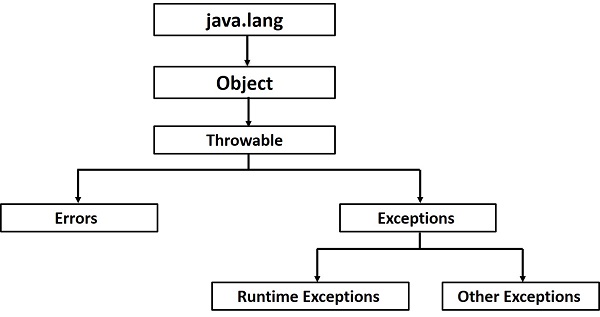
All exception classes are subtypes of the java.lang.Exception class. The exception class is a subclass of the Throwable class. Other than the exception class there is another subclass called Error which is derived from the Throwable class.

Errors are abnormal conditions that happen in case of severe failures, these are not handled by the Java programs. Errors are generated to indicate errors generated by the runtime environment. Example: JVM is out of memory. Normally, programs cannot recover from errors.

The Exception class has two main subclasses: IOException class and RuntimeException Class.

Exceptions1

Following is a list of most common checked and unchecked Java’s Built-in Exceptions.

Exceptions Methods

Following is the list of important methods available in the Throwable class.

Sr.No. Method & Description
1 public String getMessage()

Returns a detailed message about the exception that has occurred. This message is initialized in the Throwable constructor.

2 public Throwable getCause()

Returns the cause of the exception as represented by a Throwable object.

3 public String toString()

Returns the name of the class concatenated with the result of getMessage().

4 public void printStackTrace()

Prints the result of toString() along with the stack trace to System.err, the error output stream.

5 public StackTraceElement [] getStackTrace()

Returns an array containing each element on the stack trace. The element at index 0 represents the top of the call stack, and the last element in the array represents the method at the bottom of the call stack.

6 public Throwable fillInStackTrace()

Fills the stack trace of this Throwable object with the current stack trace, adding to any previous information in the stack trace.

Catching Exceptions

A method catches an exception using a combination of the try and catchkeywords. A try/catch block is placed around the code that might generate an exception. Code within a try/catch block is referred to as protected code, and the syntax for using try/catch looks like the following −

Syntax

try {
   // Protected code
}catch(ExceptionName e1) {
   // Catch block
}

The code which is prone to exceptions is placed in the try block. When an exception occurs, that exception occurred is handled by catch block associated with it. Every try block should be immediately followed either by a catch block or finally block.

A catch statement involves declaring the type of exception you are trying to catch. If an exception occurs in protected code, the catch block (or blocks) that follows the try is checked. If the type of exception that occurred is listed in a catch block, the exception is passed to the catch block much as an argument is passed into a method parameter.

Example

The following is an array declared with 2 elements. Then the code tries to access the 3rd element of the array which throws an exception.

// File Name : ExcepTest.java
import java.io.*;

public class ExcepTest {

   public static void main(String args[]) {
      try {
         int a[] = new int[2];
         System.out.println("Access element three :" + a[3]);
      }catch(ArrayIndexOutOfBoundsException e) {
         System.out.println("Exception thrown  :" + e);
      }
      System.out.println("Out of the block");
   }
}

This will produce the following result −

Output

Exception thrown  :java.lang.ArrayIndexOutOfBoundsException: 3
Out of the block

Multiple Catch Blocks

A try block can be followed by multiple catch blocks. The syntax for multiple catch blocks looks like the following −

Syntax

try {
   // Protected code
}catch(ExceptionType1 e1) {
   // Catch block
}catch(ExceptionType2 e2) {
   // Catch block
}catch(ExceptionType3 e3) {
   // Catch block
}

The previous statements demonstrate three catch blocks, but you can have any number of them after a single try. If an exception occurs in the protected code, the exception is thrown to the first catch block in the list. If the data type of the exception thrown matches ExceptionType1, it gets caught there. If not, the exception passes down to the second catch statement. This continues until the exception either is caught or falls through all catches, in which case the current method stops execution and the exception is thrown down to the previous method on the call stack.

Example

Here is code segment showing how to use multiple try/catch statements.

try {
   file = new FileInputStream(fileName);
   x = (byte) file.read();
}catch(IOException i) {
   i.printStackTrace();
   return -1;
}catch(FileNotFoundException f) // Not valid! {
   f.printStackTrace();
   return -1;
}

Catching Multiple Type of Exceptions

Since Java 7, you can handle more than one exception using a single catch block, this feature simplifies the code. Here is how you would do it −

catch (IOException|FileNotFoundException ex) {
   logger.log(ex);
   throw ex;

The Throws/Throw Keywords

If a method does not handle a checked exception, the method must declare it using the throws keyword. The throws keyword appears at the end of a method’s signature.

You can throw an exception, either a newly instantiated one or an exception that you just caught, by using the throw keyword.

Try to understand the difference between throws and throw keywords, throws is used to postpone the handling of a checked exception and throw is used to invoke an exception explicitly.

The following method declares that it throws a RemoteException −

Example

import java.io.*;
public class className {

   public void deposit(double amount) throws RemoteException {
      // Method implementation
      throw new RemoteException();
   }
   // Remainder of class definition
}

A method can declare that it throws more than one exception, in which case the exceptions are declared in a list separated by commas. For example, the following method declares that it throws a RemoteException and an InsufficientFundsException −

Example

import java.io.*;
public class className {

   public void withdraw(double amount) throws RemoteException, 
      InsufficientFundsException {
      // Method implementation
   }
   // Remainder of class definition
}

The Finally Block

The finally block follows a try block or a catch block. A finally block of code always executes, irrespective of occurrence of an Exception.

Using a finally block allows you to run any cleanup-type statements that you want to execute, no matter what happens in the protected code.

A finally block appears at the end of the catch blocks and has the following syntax −

Syntax

try {
   // Protected code
}catch(ExceptionType1 e1) {
   // Catch block
}catch(ExceptionType2 e2) {
   // Catch block
}catch(ExceptionType3 e3) {
   // Catch block
}finally {
   // The finally block always executes.
}

Example

public class ExcepTest {

   public static void main(String args[]) {
      int a[] = new int[2];
      try {
         System.out.println("Access element three :" + a[3]);
      }catch(ArrayIndexOutOfBoundsException e) {
         System.out.println("Exception thrown  :" + e);
      }finally {
         a[0] = 6;
         System.out.println("First element value: " + a[0]);
         System.out.println("The finally statement is executed");
      }
   }
}

This will produce the following result −

Output

Exception thrown  :java.lang.ArrayIndexOutOfBoundsException: 3
First element value: 6
The finally statement is executed

Note the following −

  • A catch clause cannot exist without a try statement.
  • It is not compulsory to have finally clauses whenever a try/catch block is present.
  • The try block cannot be present without either catch clause or finally clause.
  • Any code cannot be present in between the try, catch, finally blocks.

The try-with-resources

Generally, when we use any resources like streams, connections, etc. we have to close them explicitly using finally block. In the following program, we are reading data from a file using FileReader and we are closing it using finally block.

Example

import java.io.File;
import java.io.FileReader;
import java.io.IOException;

public class ReadData_Demo {

   public static void main(String args[]) {
      FileReader fr = null;		
      try {
         File file = new File("file.txt");
         fr = new FileReader(file); char [] a = new char[50];
         fr.read(a);   // reads the content to the array
         for(char c : a)
         System.out.print(c);   // prints the characters one by one
      }catch(IOException e) {
         e.printStackTrace();
      }finally {
         try {
            fr.close();
         }catch(IOException ex) {		
            ex.printStackTrace();
         }
      }
   }
}

try-with-resources, also referred as automatic resource management, is a new exception handling mechanism that was introduced in Java 7, which automatically closes the resources used within the try catch block.

To use this statement, you simply need to declare the required resources within the parenthesis, and the created resource will be closed automatically at the end of the block. Following is the syntax of try-with-resources statement.

Syntax

try(FileReader fr = new FileReader("file path")) {
   // use the resource
   }catch() {
      // body of catch 
   }
}

Following is the program that reads the data in a file using try-with-resources statement.

Example

import java.io.FileReader;
import java.io.IOException;

public class Try_withDemo {

   public static void main(String args[]) {
      try(FileReader fr = new FileReader("E://file.txt")) {
         char [] a = new char[50];
         fr.read(a);   // reads the contentto the array
         for(char c : a)
         System.out.print(c);   // prints the characters one by one
      }catch(IOException e) {
         e.printStackTrace();
      }
   }
}

Following points are to be kept in mind while working with try-with-resources statement.

  • To use a class with try-with-resources statement it should implementAutoCloseable interface and the close() method of it gets invoked automatically at runtime.
  • You can declare more than one class in try-with-resources statement.
  • While you declare multiple classes in the try block of try-with-resources statement these classes are closed in reverse order.
  • Except the declaration of resources within the parenthesis everything is the same as normal try/catch block of a try block.
  • The resource declared in try gets instantiated just before the start of the try-block.
  • The resource declared at the try block is implicitly declared as final.

User-defined Exceptions

You can create your own exceptions in Java. Keep the following points in mind when writing your own exception classes −

  • All exceptions must be a child of Throwable.
  • If you want to write a checked exception that is automatically enforced by the Handle or Declare Rule, you need to extend the Exception class.
  • If you want to write a runtime exception, you need to extend the RuntimeException class.

We can define our own Exception class as below −

class MyException extends Exception {
}

You just need to extend the predefined Exception class to create your own Exception. These are considered to be checked exceptions. The followingInsufficientFundsException class is a user-defined exception that extends the Exception class, making it a checked exception. An exception class is like any other class, containing useful fields and methods.

Example

// File Name InsufficientFundsException.java
import java.io.*;

public class InsufficientFundsException extends Exception {
   private double amount;
   
   public InsufficientFundsException(double amount) {
      this.amount = amount;
   }
   
   public double getAmount() {
      return amount;
   }
}

To demonstrate using our user-defined exception, the following CheckingAccount class contains a withdraw() method that throws an InsufficientFundsException.

// File Name CheckingAccount.java
import java.io.*;

public class CheckingAccount {
   private double balance;
   private int number;
   
   public CheckingAccount(int number) {
      this.number = number;
   }
   
   public void deposit(double amount) {
      balance += amount;
   }
   
   public void withdraw(double amount) throws InsufficientFundsException {
      if(amount <= balance) {
         balance -= amount;
      }else {
         double needs = amount - balance;
         throw new InsufficientFundsException(needs);
      }
   }
   
   public double getBalance() {
      return balance;
   }
   
   public int getNumber() {
      return number;
   }
}

The following BankDemo program demonstrates invoking the deposit() and withdraw() methods of CheckingAccount.

// File Name BankDemo.java
public class BankDemo {

   public static void main(String [] args) {
      CheckingAccount c = new CheckingAccount(101);
      System.out.println("Depositing $500...");
      c.deposit(500.00);
      
      try {
         System.out.println("\nWithdrawing $100...");
         c.withdraw(100.00);
         System.out.println("\nWithdrawing $600...");
         c.withdraw(600.00);
      }catch(InsufficientFundsException e) {
         System.out.println("Sorry, but you are short $" + e.getAmount());
         e.printStackTrace();
      }
   }
}

Compile all the above three files and run BankDemo. This will produce the following result −

Output

Depositing $500...

Withdrawing $100...

Withdrawing $600...
Sorry, but you are short $200.0
InsufficientFundsException
         at CheckingAccount.withdraw(CheckingAccount.java:25)
         at BankDemo.main(BankDemo.java:13)

Common Exceptions

In Java, it is possible to define two catergories of Exceptions and Errors.

  • JVM Exceptions − These are exceptions/errors that are exclusively or logically thrown by the JVM. Examples: NullPointerException, ArrayIndexOutOfBoundsException, ClassCastException.
  • Programmatic Exceptions − These exceptions are thrown explicitly by the application or the API programmers. Examples: IllegalArgumentException, IllegalStateException.

INNER CLASSES

Nested Classes

In Java, just like methods, variables of a class too can have another class as its member. Writing a class within another is allowed in Java. The class written within is called the nested class, and the class that holds the inner class is called the outer class.

Syntax

Following is the syntax to write a nested class. Here, the class Outer_Demo is the outer class and the class Inner_Demo is the nested class.

class Outer_Demo {
   class Nested_Demo {
   }
}

Nested classes are divided into two types −

  • Non-static nested classes − These are the non-static members of a class.
  • Static nested classes − These are the static members of a class.

Inner Classes

Inner Classes (Non-static Nested Classes)

Inner classes are a security mechanism in Java. We know a class cannot be associated with the access modifier private, but if we have the class as a member of other class, then the inner class can be made private. And this is also used to access the private members of a class.

Inner classes are of three types depending on how and where you define them. They are −

  • Inner Class
  • Method-local Inner Class
  • Anonymous Inner Class

Inner Class

Creating an inner class is quite simple. You just need to write a class within a class. Unlike a class, an inner class can be private and once you declare an inner class private, it cannot be accessed from an object outside the class.

Following is the program to create an inner class and access it. In the given example, we make the inner class private and access the class through a method.

Example

class Outer_Demo {
   int num;
   
   // inner class
   private class Inner_Demo {
      public void print() {
         System.out.println("This is an inner class");
      }
   }
   
   // Accessing he inner class from the method within
   void display_Inner() {
      Inner_Demo inner = new Inner_Demo();
      inner.print();
   }
}
   
public class My_class {

   public static void main(String args[]) {
      // Instantiating the outer class 
      Outer_Demo outer = new Outer_Demo();
      
      // Accessing the display_Inner() method.
      outer.display_Inner();
   }
}

Here you can observe that Outer_Demo is the outer class, Inner_Demo is the inner class, display_Inner() is the method inside which we are instantiating the inner class, and this method is invoked from the mainmethod.

If you compile and execute the above program, you will get the following result −

Output

This is an inner class.

Accessing the Private Members

As mentioned earlier, inner classes are also used to access the private members of a class. Suppose, a class is having private members to access them. Write an inner class in it, return the private members from a method within the inner class, say, getValue(), and finally from another class (from which you want to access the private members) call the getValue() method of the inner class.

To instantiate the inner class, initially you have to instantiate the outer class. Thereafter, using the object of the outer class, following is the way in which you can instantiate the inner class.

Outer_Demo outer = new Outer_Demo();
Outer_Demo.Inner_Demo inner = outer.new Inner_Demo();

The following program shows how to access the private members of a class using inner class.

Example

class Outer_Demo {
   // private variable of the outer class
   private int num = 175;  
   
   // inner class
   public class Inner_Demo {
      public int getNum() {
         System.out.println("This is the getnum method of the inner class");
         return num;
      }
   }
}

public class My_class2 {

   public static void main(String args[]) {
      // Instantiating the outer class
      Outer_Demo outer = new Outer_Demo();
      
      // Instantiating the inner class
      Outer_Demo.Inner_Demo inner = outer.new Inner_Demo();
      System.out.println(inner.getNum());
   }
}

If you compile and execute the above program, you will get the following result −

Output

The value of num in the class Test is: 175

Method-local Inner Class

In Java, we can write a class within a method and this will be a local type. Like local variables, the scope of the inner class is restricted within the method.

A method-local inner class can be instantiated only within the method where the inner class is defined. The following program shows how to use a method-local inner class.

Example

public class Outerclass {
   // instance method of the outer class 
   void my_Method() {
      int num = 23;

      // method-local inner class
      class MethodInner_Demo {
         public void print() {
            System.out.println("This is method inner class "+num);	   
         }   
      } // end of inner class
	   
      // Accessing the inner class
      MethodInner_Demo inner = new MethodInner_Demo();
      inner.print();
   }
   
   public static void main(String args[]) {
      Outerclass outer = new Outerclass();
      outer.my_Method();	   	   
   }
}

If you compile and execute the above program, you will get the following result −

Output

This is method inner class 23

Anonymous Inner Class

An inner class declared without a class name is known as an anonymous inner class. In case of anonymous inner classes, we declare and instantiate them at the same time. Generally, they are used whenever you need to override the method of a class or an interface. The syntax of an anonymous inner class is as follows −

Syntax

AnonymousInner an_inner = new AnonymousInner() {
   public void my_method() {
      ........
      ........
   }   
};

The following program shows how to override the method of a class using anonymous inner class.

Example

abstract class AnonymousInner {
   public abstract void mymethod();
}

public class Outer_class {

   public static void main(String args[]) {
      AnonymousInner inner = new AnonymousInner() {
         public void mymethod() {
            System.out.println("This is an example of anonymous inner class");
         }
      };
      inner.mymethod();	
   }
}

If you compile and execute the above program, you will get the following result −

Output

This is an example of anonymous inner class

In the same way, you can override the methods of the concrete class as well as the interface using an anonymous inner class.

Anonymous Inner Class as Argument

Generally, if a method accepts an object of an interface, an abstract class, or a concrete class, then we can implement the interface, extend the abstract class, and pass the object to the method. If it is a class, then we can directly pass it to the method.

But in all the three cases, you can pass an anonymous inner class to the method. Here is the syntax of passing an anonymous inner class as a method argument −

obj.my_Method(new My_Class() {
   public void Do() {
      .....
      .....
   }
});

The following program shows how to pass an anonymous inner class as a method argument.

Example

// interface
interface Message {
   String greet();
}

public class My_class {
   // method which accepts the object of interface Message
   public void displayMessage(Message m) {
      System.out.println(m.greet() +
         ", This is an example of anonymous inner class as an argument");  
   }

   public static void main(String args[]) {
      // Instantiating the class
      My_class obj = new My_class();

      // Passing an anonymous inner class as an argument
      obj.displayMessage(new Message() {
         public String greet() {
            return "Hello";
         }
      });
   }
}

If you compile and execute the above program, it gives you the following result −

Output

Hello This is an example of anonymous inner class as an argument

Static Nested Class

A static inner class is a nested class which is a static member of the outer class. It can be accessed without instantiating the outer class, using other static members. Just like static members, a static nested class does not have access to the instance variables and methods of the outer class. The syntax of static nested class is as follows −

Syntax

class MyOuter {
   static class Nested_Demo {
   }
}

Instantiating a static nested class is a bit different from instantiating an inner class. The following program shows how to use a static nested class.

Example

public class Outer {
   static class Nested_Demo {
      public void my_method() {
         System.out.println("This is my nested class");
      }
   }
   
   public static void main(String args[]) {
      Outer.Nested_Demo nested = new Outer.Nested_Demo();	 
      nested.my_method();
   }
}

If you compile and execute the above program, you will get the following result −

Output

This is my nested class

PACKAGES

Packages are used in Java in order to prevent naming conflicts, to control access, to make searching/locating and usage of classes, interfaces, enumerations and annotations easier, etc.

A Package can be defined as a grouping of related types (classes, interfaces, enumerations and annotations ) providing access protection and namespace management.

Some of the existing packages in Java are −

  • java.lang − bundles the fundamental classes
  • java.io − classes for input , output functions are bundled in this package

Programmers can define their own packages to bundle group of classes/interfaces, etc. It is a good practice to group related classes implemented by you so that a programmer can easily determine that the classes, interfaces, enumerations, and annotations are related.

Since the package creates a new namespace there won’t be any name conflicts with names in other packages. Using packages, it is easier to provide access control and it is also easier to locate the related classes.

Creating a Package

While creating a package, you should choose a name for the package and include a package statement along with that name at the top of every source file that contains the classes, interfaces, enumerations, and annotation types that you want to include in the package.

The package statement should be the first line in the source file. There can be only one package statement in each source file, and it applies to all types in the file.

If a package statement is not used then the class, interfaces, enumerations, and annotation types will be placed in the current default package.

To compile the Java programs with package statements, you have to use -d option as shown below.

javac -d Destination_folder file_name.java

Then a folder with the given package name is created in the specified destination, and the compiled class files will be placed in that folder.

Example

Let us look at an example that creates a package called animals. It is a good practice to use names of packages with lower case letters to avoid any conflicts with the names of classes and interfaces.

Following package example contains interface named animals

/* File name : Animal.java */
package animals;

interface Animal {
   public void eat();
   public void travel();
}

Now, let us implement the above interface in the same package animals

package animals;
/* File name : MammalInt.java */

public class MammalInt implements Animal {

   public void eat() {
      System.out.println("Mammal eats");
   }

   public void travel() {
      System.out.println("Mammal travels");
   } 

   public int noOfLegs() {
      return 0;
   }

   public static void main(String args[]) {
      MammalInt m = new MammalInt();
      m.eat();
      m.travel();
   }
}

Now compile the java files as shown below −

$ javac -d . Animal.java 
$ javac -d . MammalInt.java

Now a package/folder with the name animals will be created in the current directory and these class files will be placed in it as shown below.

Packages

You can execute the class file within the package and get the result as shown below.

Mammal eats
Mammal travels

The import Keyword

If a class wants to use another class in the same package, the package name need not be used. Classes in the same package find each other without any special syntax.

Example

Here, a class named Boss is added to the payroll package that already contains Employee. The Boss can then refer to the Employee class without using the payroll prefix, as demonstrated by the following Boss class.

package payroll;
public class Boss {
   public void payEmployee(Employee e) {
      e.mailCheck();
   }
}

What happens if the Employee class is not in the payroll package? The Boss class must then use one of the following techniques for referring to a class in a different package.

  • The fully qualified name of the class can be used. For example −
payroll.Employee
  • The package can be imported using the import keyword and the wild card (*). For example −
import payroll.*;
  • The class itself can be imported using the import keyword. For example −
import payroll.Employee;

Note − A class file can contain any number of import statements. The import statements must appear after the package statement and before the class declaration.

The Directory Structure of Packages

Two major results occur when a class is placed in a package −

  • The name of the package becomes a part of the name of the class, as we just discussed in the previous section.
  • The name of the package must match the directory structure where the corresponding bytecode resides.

Here is simple way of managing your files in Java −

Put the source code for a class, interface, enumeration, or annotation type in a text file whose name is the simple name of the type and whose extension is.java.

For example −

// File Name :  Car.java
package vehicle;

public class Car {
   // Class implementation.   
}

Now, put the source file in a directory whose name reflects the name of the package to which the class belongs −

....\vehicle\Car.java

Now, the qualified class name and pathname would be as follows −

  • Class name → vehicle.Car
  • Path name → vehicle\Car.java (in windows)

In general, a company uses its reversed Internet domain name for its package names.

Example − A company’s Internet domain name is apple.com, then all its package names would start with com.apple. Each component of the package name corresponds to a subdirectory.

Example − The company had a com.apple.computers package that contained a Dell.java source file, it would be contained in a series of subdirectories like this −

....\com\apple\computers\Dell.java

At the time of compilation, the compiler creates a different output file for each class, interface and enumeration defined in it. The base name of the output file is the name of the type, and its extension is .class.

For example −

// File Name: Dell.java
package com.apple.computers;

public class Dell {
}

class Ups {
}

Now, compile this file as follows using -d option −

$javac -d . Dell.java

The files will be compiled as follows −

.\com\apple\computers\Dell.class
.\com\apple\computers\Ups.class

You can import all the classes or interfaces defined in \com\apple\computers\as follows −

import com.apple.computers.*;

Like the .java source files, the compiled .class files should be in a series of directories that reflect the package name. However, the path to the .class files does not have to be the same as the path to the .java source files. You can arrange your source and class directories separately, as −

<path-one>\sources\com\apple\computers\Dell.java

<path-two>\classes\com\apple\computers\Dell.class

By doing this, it is possible to give access to the classes directory to other programmers without revealing your sources. You also need to manage source and class files in this manner so that the compiler and the Java Virtual Machine (JVM) can find all the types your program uses.

The full path to the classes directory, <path-two>\classes, is called the class path, and is set with the CLASSPATH system variable. Both the compiler and the JVM construct the path to your .class files by adding the package name to the class path.

Say <path-two>\classes is the class path, and the package name is com.apple.computers, then the compiler and JVM will look for .class files in <path-two>\classes\com\apple\computers.

A class path may include several paths. Multiple paths should be separated by a semicolon (Windows) or colon (Unix). By default, the compiler and the JVM search the current directory and the JAR file containing the Java platform classes so that these directories are automatically in the class path.

Set CLASSPATH System Variable

To display the current CLASSPATH variable, use the following commands in Windows and UNIX (Bourne shell) −

  • In Windows → C:\> set CLASSPATH
  • In UNIX → % echo $CLASSPATH

To delete the current contents of the CLASSPATH variable, use −

  • In Windows → C:\> set CLASSPATH =
  • In UNIX → % unset CLASSPATH; export CLASSPATH

To set the CLASSPATH variable −

  • In Windows → set CLASSPATH = C:\users\jack\java\classes
  • In UNIX → % CLASSPATH = /home/jack/java/classes; export CLASSPATH