
This tutorial assumes you have understanding on how JDBC application works. Before starting with database access through a servlet, make sure you have proper JDBC environment setup along with a database.
For more detail on how to access database using JDBC and its environment setup you can go through our JDBC Tutorial.
To start with basic concept, let us create a simple table and create few records in that table as follows:
Create Table
To create the Employees table in TEST database, use the following steps:
Step 1:
Open a Command Prompt and change to the installation directory as follows:
C:\>
C:\>cd Program Files\MySQL\bin
C:\Program Files\MySQL\bin>
Step 2:
Login to database as follows
C:\Program Files\MySQL\bin>mysql -u root -p
Enter password: ********
mysql>
Step 3:
Create the table Employee in TEST database as follows:
mysql> use TEST;
mysql> create table Employees
    (
     id int not null,
     age int not null,
     first varchar (255),
     last varchar (255)
    );
Query OK, 0 rows affected (0.08 sec)
mysql>
Create Data Records
Finally you create few records in Employee table as follows:
mysql> INSERT INTO Employees VALUES (100, 18, 'Zara', 'Ali');
Query OK, 1 row affected (0.05 sec)

mysql> INSERT INTO Employees VALUES (101, 25, 'Mahnaz', 'Fatma');
Query OK, 1 row affected (0.00 sec)

mysql> INSERT INTO Employees VALUES (102, 30, 'Zaid', 'Khan');
Query OK, 1 row affected (0.00 sec)

mysql> INSERT INTO Employees VALUES (103, 28, 'Sumit', 'Mittal');
Query OK, 1 row affected (0.00 sec)

mysql>
Accessing a Database:
Here is an example which shows how to access TEST database using Servlet.
// Loading required libraries
import java.io.*;
import java.util.*;
import javax.servlet.*;
import javax.servlet.http.*;
import java.sql.*;

public class DatabaseAccess extends HttpServlet{

  public void doGet(HttpServletRequest request,
                    HttpServletResponse response)
            throws ServletException, IOException
  {
      // JDBC driver name and database URL
      static final String JDBC_DRIVER="com.mysql.jdbc.Driver";
      static final String DB_URL="jdbc:mysql://localhost/TEST";

      //  Database credentials
      static final String USER = "root";
      static final String PASS = "password";

      // Set response content type
      response.setContentType("text/html");
      PrintWriter out = response.getWriter();
      String title = "Database Result";
      String docType =
        "<!doctype html public \"-//w3c//dtd html 4.0 " +
         "transitional//en\">\n";
         out.println(docType +
         "<html>\n" +
         "<head><title>" + title + "</title></head>\n" +
         "<body bgcolor=\"#f0f0f0\">\n" +
         "<h1 align=\"center\">" + title + "</h1>\n");
      try{
         // Register JDBC driver
         Class.forName("com.mysql.jdbc.Driver");

         // Open a connection
         Connection conn = DriverManager.getConnection(DB_URL, USER, PASS);

         // Execute SQL query
         Statement stmt = conn.createStatement();
         String sql;
         sql = "SELECT id, first, last, age FROM Employees";
         ResultSet rs = stmt.executeQuery(sql);

         // Extract data from result set
         while(rs.next()){
            //Retrieve by column name
            int id  = rs.getInt("id");
            int age = rs.getInt("age");
            String first = rs.getString("first");
            String last = rs.getString("last");

            //Display values
            out.println("ID: " + id + "<br>");
            out.println(", Age: " + age + "<br>");
            out.println(", First: " + first + "<br>");
            out.println(", Last: " + last + "<br>");
         }
         out.println("</body></html>");

         // Clean-up environment
         rs.close();
         stmt.close();
         conn.close();
      }catch(SQLException se){
         //Handle errors for JDBC
         se.printStackTrace();
      }catch(Exception e){
         //Handle errors for Class.forName
         e.printStackTrace();
      }finally{
         //finally block used to close resources
         try{
            if(stmt!=null)
               stmt.close();
         }catch(SQLException se2){
         }// nothing we can do
         try{
            if(conn!=null)
            conn.close();
         }catch(SQLException se){
            se.printStackTrace();
         }//end finally try
      } //end try
   }
}
Now let us compile above servlet and create following entries in web.xml
....
 <servlet>
     <servlet-name>DatabaseAccess</servlet-name>
     <servlet-class>DatabaseAccess</servlet-class>
 </servlet>

 <servlet-mapping>
     <servlet-name>DatabaseAccess</servlet-name>
     <url-pattern>/DatabaseAccess</url-pattern>
 </servlet-mapping>
....
Now call this servlet using URL http://localhost:8080/DatabaseAccess which would display following response:
Database Result
ID: 100, Age: 18, First: Zara, Last: Ali
ID: 101, Age: 25, First: Mahnaz, Last: Fatma
ID: 102, Age: 30, First: Zaid, Last: Khan
ID: 103, Age: 28, First: Sumit, Last: Mittal
To start developing with JDBC, you should setup your JDBC environment by following the steps shown below. We assume that you are working on a Windows platform.
Install Java
Install J2SE Development Kit 5.0 (JDK 5.0) from Java Official Site.
Make sure following environment variables are set as described below −
- JAVA_HOME: This environment variable should point to the directory where you installed the JDK, e.g. C:\Program Files\Java\jdk1.5.0.
- CLASSPATH: This environment variable should have appropriate paths set, e.g. C:\Program Files\Java\jdk1.5.0_20\jre\lib.
- PATH: This environment variable should point to appropriate JRE bin, e.g. C:\Program Files\Java\jre1.5.0_20\bin.
It is possible you have these variable set already, but just to make sure here’s how to check.
- Go to the control panel and double-click on System. If you are a Windows XP user, it is possible you have to open Performance and Maintenance before you will see the System icon.
- Go to the Advanced tab and click on the Environment Variables.
- Now check if all the above mentioned variables are set properly.
You automatically get both JDBC packages java.sql and javax.sql, when you install J2SE Development Kit 5.0 (JDK 5.0).
Install Database
The most important thing you will need, of course is an actual running database with a table that you can query and modify.
Install a database that is most suitable for you. You can have plenty of choices and most common are −
- MySQL DB: MySQL is an open source database. You can download it from MySQL Official Site. We recommend downloading the full Windows installation.In addition, download and install MySQL Administrator as well asMySQL Query Browser. These are GUI based tools that will make your development much easier.
Finally, download and unzip MySQL Connector/J (the MySQL JDBC driver) in a convenient directory. For the purpose of this tutorial we will assume that you have installed the driver at C:\Program Files\MySQL\mysql-connector-java-5.1.8.
Accordingly, set CLASSPATH variable to C:\Program Files\MySQL\mysql-connector-java-5.1.8\mysql-connector-java-5.1.8-bin.jar. Your driver version may vary based on your installation.
- PostgreSQL DB: PostgreSQL is an open source database. You can download it from PostgreSQL Official Site.The Postgres installation contains a GUI based administrative tool called pgAdmin III. JDBC drivers are also included as part of the installation.
- Oracle DB: Oracle DB is a commercial database sold by Oracle . We assume that you have the necessary distribution media to install it.Oracle installation includes a GUI based administrative tool called Enterprise Manager. JDBC drivers are also included as a part of the installation.
Install Database Drivers
The latest JDK includes a JDBC-ODBC Bridge driver that makes most Open Database Connectivity (ODBC) drivers available to programmers using the JDBC API.
Now a days, most of the Database vendors are supplying appropriate JDBC drivers along with Database installation. So, you should not worry about this part.
Set Database Credential
For this tutorial we are going to use MySQL database. When you install any of the above database, its administrator ID is set to root and gives provision to set a password of your choice.
Using root ID and password you can either create another user ID and password, or you can use root ID and password for your JDBC application.
There are various database operations like database creation and deletion, which would need administrator ID and password.
For rest of the JDBC tutorial, we would use MySQL Database with username as ID and password as password.
If you do not have sufficient privilege to create new users, then you can ask your Database Administrator (DBA) to create a user ID and password for you.
Create Database
To create the EMP database, use the following steps −
Step 1
Open a Command Prompt and change to the installation directory as follows −
C:\>
C:\>cd Program Files\MySQL\bin
C:\Program Files\MySQL\bin>
Note: The path to mysqld.exe may vary depending on the install location of MySQL on your system. You can also check documentation on how to start and stop your database server.
Step 2
Start the database server by executing the following command, if it is already not running.
C:\Program Files\MySQL\bin>mysqld
C:\Program Files\MySQL\bin>
Step 3
Create the EMP database by executing the following command −
C:\Program Files\MySQL\bin> mysqladmin create EMP -u root -p
Enter password: ********
C:\Program Files\MySQL\bin>
Create Table
To create the Employees table in EMP database, use the following steps −
Step 1
Open a Command Prompt and change to the installation directory as follows −
C:\>
C:\>cd Program Files\MySQL\bin
C:\Program Files\MySQL\bin>
Step 2
Login to the database as follows −
C:\Program Files\MySQL\bin>mysql -u root -p
Enter password: ********
mysql>
Step 3
Create the table Employee as follows −
mysql> use EMP;
mysql> create table Employees
    -> (
    -> id int not null,
    -> age int not null,
    -> first varchar (255),
    -> last varchar (255)
    -> );
Query OK, 0 rows affected (0.08 sec)
mysql>
Create Data Records
Finally you create few records in Employee table as follows −
mysql> INSERT INTO Employees VALUES (100, 18, 'Zara', 'Ali');
Query OK, 1 row affected (0.05 sec)

mysql> INSERT INTO Employees VALUES (101, 25, 'Mahnaz', 'Fatma');
Query OK, 1 row affected (0.00 sec)

mysql> INSERT INTO Employees VALUES (102, 30, 'Zaid', 'Khan');
Query OK, 1 row affected (0.00 sec)

mysql> INSERT INTO Employees VALUES (103, 28, 'Sumit', 'Mittal');
Query OK, 1 row affected (0.00 sec)

mysql>
JDBC drivers implement the defined interfaces in the JDBC API, for interacting with your database server.
For example, using JDBC drivers enable you to open database connections and to interact with it by sending SQL or database commands then receiving results with Java.
The Java.sql package that ships with JDK, contains various classes with their behaviours defined and their actual implementaions are done in third-party drivers. Third party vendors implements the java.sql.Driver interface in their database driver.
JDBC Drivers Types
JDBC driver implementations vary because of the wide variety of operating systems and hardware platforms in which Java operates. Sun has divided the implementation types into four categories, Types 1, 2, 3, and 4, which is explained below −
Type 1: JDBC-ODBC Bridge Driver
In a Type 1 driver, a JDBC bridge is used to access ODBC drivers installed on each client machine. Using ODBC, requires configuring on your system a Data Source Name (DSN) that represents the target database.
When Java first came out, this was a useful driver because most databases only supported ODBC access but now this type of driver is recommended only for experimental use or when no other alternative is available.
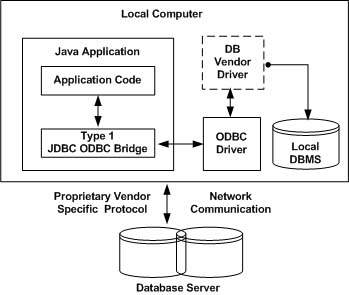 The JDBC-ODBC Bridge that comes with JDK 1.2 is a good example of this kind of driver.
Type 2: JDBC-Native API
In a Type 2 driver, JDBC API calls are converted into native C/C++ API calls, which are unique to the database. These drivers are typically provided by the database vendors and used in the same manner as the JDBC-ODBC Bridge. The vendor-specific driver must be installed on each client machine.
If we change the Database, we have to change the native API, as it is specific to a database and they are mostly obsolete now, but you may realize some speed increase with a Type 2 driver, because it eliminates ODBC’s overhead.
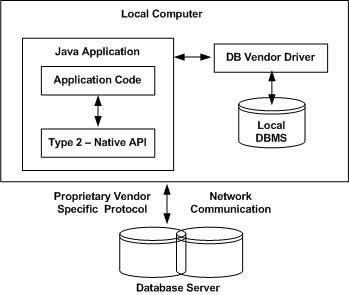 The Oracle Call Interface (OCI) driver is an example of a Type 2 driver.
Type 3: JDBC-Net pure Java
In a Type 3 driver, a three-tier approach is used to access databases. The JDBC clients use standard network sockets to communicate with a middleware application server. The socket information is then translated by the middleware application server into the call format required by the DBMS, and forwarded to the database server.
This kind of driver is extremely flexible, since it requires no code installed on the client and a single driver can actually provide access to multiple databases.
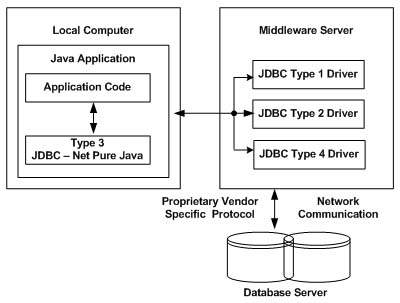 You can think of the application server as a JDBC “proxy,” meaning that it makes calls for the client application. As a result, you need some knowledge of the application server’s configuration in order to effectively use this driver type.
Your application server might use a Type 1, 2, or 4 driver to communicate with the database, understanding the nuances will prove helpful.
Type 4: 100% Pure Java
In a Type 4 driver, a pure Java-based driver communicates directly with the vendor’s database through socket connection. This is the highest performance driver available for the database and is usually provided by the vendor itself.
This kind of driver is extremely flexible, you don’t need to install special software on the client or server. Further, these drivers can be downloaded dynamically.
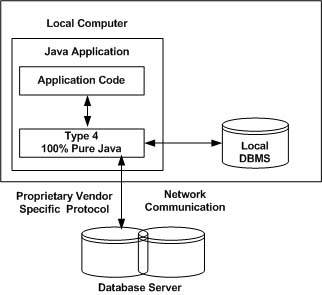 MySQL’s Connector/J driver is a Type 4 driver. Because of the proprietary nature of their network protocols, database vendors usually supply type 4 drivers.
Which Driver should be Used?
If you are accessing one type of database, such as Oracle, Sybase, or IBM, the preferred driver type is 4.
If your Java application is accessing multiple types of databases at the same time, type 3 is the preferred driver.
Type 2 drivers are useful in situations, where a type 3 or type 4 driver is not available yet for your database.
The type 1 driver is not considered a deployment-level driver, and is typically used for development and testing purposes only.
After you’ve installed the appropriate driver, it is time to establish a database connection using JDBC.
The programming involved to establish a JDBC connection is fairly simple. Here are these simple four steps −
- Import JDBC Packages: Add import statements to your Java program to import required classes in your Java code.
- Register JDBC Driver: This step causes the JVM to load the desired driver implementation into memory so it can fulfill your JDBC requests.
- Database URL Formulation: This is to create a properly formatted address that points to the database to which you wish to connect.
- Create Connection Object: Finally, code a call to the DriverManagerobject’s getConnection( ) method to establish actual database connection.
Import JDBC Packages
The Import statements tell the Java compiler where to find the classes you reference in your code and are placed at the very beginning of your source code.
To use the standard JDBC package, which allows you to select, insert, update, and delete data in SQL tables, add the following imports to your source code −
import java.sql.* ;  // for standard JDBC programs
import java.math.* ; // for BigDecimal and BigInteger support
Register JDBC Driver
You must register the driver in your program before you use it. Registering the driver is the process by which the Oracle driver’s class file is loaded into the memory, so it can be utilized as an implementation of the JDBC interfaces.
You need to do this registration only once in your program. You can register a driver in one of two ways.
Approach I – Class.forName()
The most common approach to register a driver is to use Java’sClass.forName() method, to dynamically load the driver’s class file into memory, which automatically registers it. This method is preferable because it allows you to make the driver registration configurable and portable.
The following example uses Class.forName( ) to register the Oracle driver −
try {
   Class.forName("oracle.jdbc.driver.OracleDriver");
}
catch(ClassNotFoundException ex) {
   System.out.println("Error: unable to load driver class!");
   System.exit(1);
}
You can use getInstance() method to work around noncompliant JVMs, but then you’ll have to code for two extra Exceptions as follows −
try {
   Class.forName("oracle.jdbc.driver.OracleDriver").newInstance();
}
catch(ClassNotFoundException ex) {
   System.out.println("Error: unable to load driver class!");
   System.exit(1);
catch(IllegalAccessException ex) {
   System.out.println("Error: access problem while loading!");
   System.exit(2);
catch(InstantiationException ex) {
   System.out.println("Error: unable to instantiate driver!");
   System.exit(3);
}
Approach II – DriverManager.registerDriver()
The second approach you can use to register a driver, is to use the staticDriverManager.registerDriver() method.
You should use the registerDriver() method if you are using a non-JDK compliant JVM, such as the one provided by Microsoft.
The following example uses registerDriver() to register the Oracle driver −
try {
   Driver myDriver = new oracle.jdbc.driver.OracleDriver();
   DriverManager.registerDriver( myDriver );
}
catch(ClassNotFoundException ex) {
   System.out.println("Error: unable to load driver class!");
   System.exit(1);
}
Database URL Formulation
After you’ve loaded the driver, you can establish a connection using theDriverManager.getConnection() method. For easy reference, let me list the three overloaded DriverManager.getConnection() methods −
- getConnection(String url)
- getConnection(String url, Properties prop)
- getConnection(String url, String user, String password)
Here each form requires a database URL. A database URL is an address that points to your database.
Formulating a database URL is where most of the problems associated with establishing a connection occurs.
Following table lists down the popular JDBC driver names and database URL.
| RDBMS | JDBC driver name | URL format |
|---|---|---|
| MySQL | com.mysql.jdbc.Driver | jdbc:mysql://hostname/ databaseName |
| ORACLE | oracle.jdbc.driver.OracleDriver | jdbc:oracle:thin:@hostname:port Number:databaseName |
| DB2 | COM.ibm.db2.jdbc.net.DB2Driver | jdbc:db2:hostname:port Number/databaseName |
| Sybase | com.sybase.jdbc.SybDriver | jdbc:sybase:Tds:hostname: port Number/databaseName |
All the highlighted part in URL format is static and you need to change only the remaining part as per your database setup.
Create Connection Object
We have listed down three forms of DriverManager.getConnection() method to create a connection object.
Using a Database URL with a username and password
The most commonly used form of getConnection() requires you to pass a database URL, a username, and a password:
Assuming you are using Oracle’s thin driver, you’ll specify a host:port:databaseName value for the database portion of the URL.
If you have a host at TCP/IP address 192.0.0.1 with a host name of amrood, and your Oracle listener is configured to listen on port 1521, and your database name is EMP, then complete database URL would be −
jdbc:oracle:thin:@amrood:1521:EMP
Now you have to call getConnection() method with appropriate username and password to get a Connection object as follows −
String URL = "jdbc:oracle:thin:@amrood:1521:EMP";
String USER = "username";
String PASS = "password"
Connection conn = DriverManager.getConnection(URL, USER, PASS);
Using Only a Database URL
A second form of the DriverManager.getConnection( ) method requires only a database URL −
DriverManager.getConnection(String url);
However, in this case, the database URL includes the username and password and has the following general form −
jdbc:oracle:driver:username/password@database
So, the above connection can be created as follows −
String URL = "jdbc:oracle:thin:username/password@amrood:1521:EMP";
Connection conn = DriverManager.getConnection(URL);
Using a Database URL and a Properties Object
A third form of the DriverManager.getConnection( ) method requires a database URL and a Properties object −
DriverManager.getConnection(String url, Properties info);
A Properties object holds a set of keyword-value pairs. It is used to pass driver properties to the driver during a call to the getConnection() method.
To make the same connection made by the previous examples, use the following code −
import java.util.*;

String URL = "jdbc:oracle:thin:@amrood:1521:EMP";
Properties info = new Properties( );
info.put( "user", "username" );
info.put( "password", "password" );

Connection conn = DriverManager.getConnection(URL, info);
Closing JDBC Connections
At the end of your JDBC program, it is required explicitly to close all the connections to the database to end each database session. However, if you forget, Java’s garbage collector will close the connection when it cleans up stale objects.
Relying on the garbage collection, especially in database programming, is a very poor programming practice. You should make a habit of always closing the connection with the close() method associated with connection object.
To ensure that a connection is closed, you could provide a ‘finally’ block in your code. A finally block always executes, regardless of an exception occurs or not.
To close the above opened connection, you should call close() method as follows −
conn.close();
Explicitly closing a connection conserves DBMS resources, which will make your database administrator happy.
 shivam singla